HighLevel Workflow AI: Auto-Categorize and Route Support Emails
Every business with a shared inbox knows the shape of the problem. Support requests, new enquiries, billing questions, spam and the one genuinely urgent message all land in the same pile, and the person who is supposed to sort it is also the person supposed to answer it. The urgent email gets found an hour late, the hot prospect gets found a day late, and the spam gets read three times by three different people.
HighLevel now has a way to sort that pile before a human ever opens it.
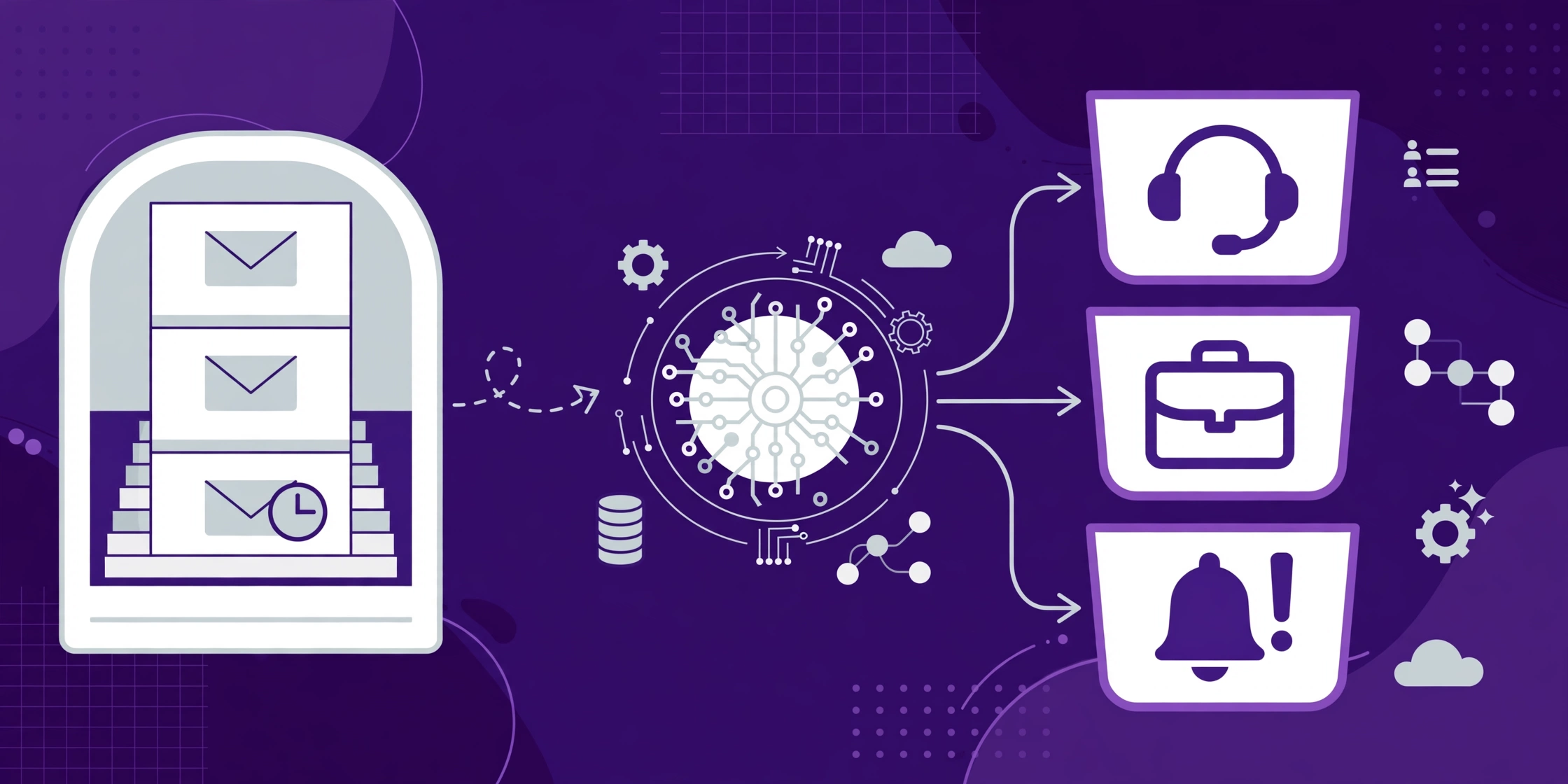
HighLevel Workflow AI sorts your support inbox automatically using the AI Agent action in Workflows and the Inbound Email trigger. The agent reads each inbound email, picks one category from your list — support ticket, customer, prospect, spam or high priority — then tags the contact and creates a follow-up task, so your team works from sorted Smart Lists.
This guide shows you how to build it, what it costs, and where it stops short — including the one mailbox setting that decides whether cold emails from strangers get captured at all.
What is the AI Agent action in HighLevel Workflows?
The AI Agent action is a workflow step that plans and executes multi-step tasks on its own, using plain-language instructions and the tools you give it. Instead of building every action manually — find the contact, add a tag, create a task, send a notification — you configure one AI Agent action to decide what to do, which tools to use and what inputs to provide during execution. That is HighLevel's own description, from its official help article on the action.
Two related features are easy to confuse with it, so it is worth drawing the line. Workflow AI is the natural-language assistant that helps you design, document and build workflows from a plain-language description. The AI Agent action is different: it is a step inside a workflow that runs on its own every time the workflow fires, making decisions at runtime. Conversation AI is different again: it holds conversations with your contacts over chat, SMS and social. The email triage build in this guide uses the AI Agent action, not the other two.
The action is a premium action, which means every execution carries an additional charge on top of your plan. HighLevel's help article states the cost plainly: each execution is priced on token usage across the model's calls plus any premium tool executions the agent uses. Standard built-in tools such as Send SMS, Update Contact Field and Add Tag do not add a premium execution charge beyond normal platform usage. HighLevel also says its automatic token optimisations can reduce execution costs by up to 50%, depending on the workflow, model, context and tools used.
How does the email triage build work?
The build has four parts: an Inbound Email trigger, the AI Agent action, contact tags, and Smart Lists that turn those tags into a sorted daily view. An email arrives, the trigger fires, the agent reads it and picks one category, the tag lands on the contact, and a task is created where one is needed. Your team then opens a Smart List — high priority first, support second, prospects third — instead of opening the inbox.
The use case comes from HighLevel itself. In its "Did You Know" tutorial published on 28 October 2026, Andrew from the HighLevel Content Army showed the AI Agent action sorting inbound emails into five buckets: support tickets, customers, prospects, spam, and high-attention emails that need a person. The agent reads the subject and body, picks one bucket, and tags the contact. The walkthrough is the clearest official example of the action doing real work, and the build below follows it.
The trigger that makes it possible is the Inbound Email trigger, which HighLevel shipped in its official changelog. It fires whenever an inbound email is received in your mailbox, and it can be narrowed with filters for mailbox, sender, CC, subject, body, attachments and whether the message was tied to a workflow. It also exposes the email as custom values your later steps can use: the message ID, subject, plain-text body, sender email and name, CC recipients, and the full body including the reply thread.
What do you need before you start?
You need a mailbox connected to HighLevel, a fixed list of categories, and a decision about which mailbox the trigger watches. Get these three right before you open the workflow builder and the rest is straightforward.
1. Connect the mailbox. Your email has to flow into the CRM before the agent can read it. For Gmail or Outlook, that means connecting the account through Email Two-Way Sync under Settings, then My Profile. For a dedicated domain, HighLevel's LC Email service handles sending and receiving inside the platform.
2. Decide how cold emails are captured. This is the setting that catches people out. HighLevel's changelog is explicit: full cold inbound capture — first-touch emails from people who are not in your CRM yet — is supported only for LC Email dedicated domains and Mailgun dedicated domains. Gmail and Outlook two-way sync, shared domains and other SMTP setups do not support full cold inbound capture. If your support inbox receives cold enquiries from strangers, run the trigger on an LC Email dedicated domain. If you only need to sort mail from people already in your system, a synced Gmail or Outlook mailbox works. Each sub-account should also use its own dedicated email subdomain, because reusing the same domain across sub-accounts can lead to unpredictable inbound routing.
3. Fix your categories before you write the instructions. The agent is only as consistent as the list you give it. Five buckets cover most businesses: support ticket, customer, prospect, spam, and high priority. Write them as a closed list and tell the agent to choose exactly one. If you leave the list open, you get new tags invented on the fly — "support-ish", "maybe billing", "urgent?" — and your Smart Lists stop working. Decide the tag names now, because they become the filters your team lives in.
How to set up AI email triage in HighLevel
Setup takes about half an hour: trigger, agent, tools, tags, Smart Lists, then testing. The steps below follow HighLevel's official help article for the AI Agent action.
1. Create the workflow and add the Inbound Email trigger. Go to Automations, then Workflows, and create a new workflow. Add the Inbound Email trigger and set your filters: which mailbox it watches, and whether it should run only for new email conversations. Running only for new conversations stops the workflow retriggering on every reply in the same thread.
2. Add the AI Agent action. Click the add-action placeholder in the workflow canvas and select AI Agent from the Workflow AI section. Give it a descriptive name, such as "Sort inbound email", so the workflow stays readable when it grows.
3. Write the instructions. This is the most important part of the configuration, and HighLevel's help article says so directly. Good instructions include a role statement, context about the trigger data, a step-by-step workflow, decision logic using if/then rules, messaging guidelines, and rules about what the agent should avoid. A working version for email triage looks like this:
You are an email triage assistant. Read the subject and full body of the inbound email below. Categorise it into exactly one of these five categories: support ticket, customer, prospect, spam, high priority. A support ticket is an existing customer asking for help with something they already bought. A customer is an existing customer writing about anything else. A prospect is someone who is not yet a customer and is asking about buying. Spam is marketing, phishing or anything not addressed to us. High priority is an angry customer, a billing dispute, a refund request, or anything mentioning a deadline, a cancellation or legal action. Apply the matching tag and nothing else. If an email could fit two categories, choose high priority. Never reply to the sender yourself.
Pass the email into the instructions using the trigger's custom values — the subject and the full plain-text body — so the agent actually has something to read. If you cannot structure the prompt cleanly, the Enhance Prompt button restructures loosely written instructions into a more detailed and organised prompt, and you can undo the enhancement if you do not like the result.
4. Choose the model. The Model dropdown offers models from Anthropic, Google and OpenAI, each with a short description of what it is designed for. For this job the choice is simple: HighLevel's help article recommends a faster model with a lower effort level for straightforward tasks such as intent classification, and its own model notes describe OpenAI's GPT-6 Luna as built for faster, high-volume tasks such as classification, summaries, tagging and quick replies. GPT-6 Sol, the heavier model, is for complex, multi-step work that needs deeper reasoning — more than sorting an email requires. Pick Luna, or the fastest model in your account, and keep the effort level low.
5. Add the tools the agent is allowed to use. Click Add Tool and select the actions the agent may execute. For email triage, two tools do most of the work: Add Contact Tag, which applies the category tag, and Add Task, which creates a follow-up task for anything marked high priority or support ticket. You can add up to 10 tools per agent, according to HighLevel's help article, and internal tools such as Date Calculator and Math Operations do not count toward that limit. For each tool you choose whether the AI decides all field values or you set some manually — for the tag tool, let the AI decide the tag value but only from your fixed list.
6. Set the output format. Under Advanced Options you can choose whether the agent returns output for later workflow steps. For a pure tagging build, None is fine. If you want later steps to branch on the category — for example, sending high-priority emails to a Slack channel — choose JSON and define a property such as "category" so downstream steps can reference it directly.
7. Leave Conversation Memory off. Conversation Memory keeps a rolling summary of past runs for the same contact on this step, which is useful for recurring follow-up workflows. For one-time triage, HighLevel's help article says it can usually remain off, and it is off by default.
8. Save, publish, and test before you trust it. Send a few test emails of each type — a support request, a sales enquiry, a refund demand, obvious spam — and check that the right tags land on the right contacts. HighLevel's Execution Logs show the agent's reasoning steps, tool usage and token consumption for every run, so you can see exactly why a message was filed where it was. Do not skip this step: an email misfiled as a prospect is a support ticket nobody sees.
9. Build Smart Lists from the tags. On the Contacts page, filter by one of the tags — say, high priority — apply it, and save it as a Smart List. Do the same for each bucket. Now your team logs in each morning and the high-priority contacts sit in one list, prospects in another, support in a third. Our guide to HighLevel Smart Lists covers the mechanics in detail, including how the same lists feed Meta Custom Audiences for retargeting.
10. Add the routing. Tagging alone is triage; routing is what makes it operational. After the agent tags a contact, add workflow steps that assign high-priority contacts to a team member, notify the support lead, or create an opportunity in a support pipeline. The Inbound Email trigger's own changelog suggests the same pattern: subject-based assignment that catches emails with "refund" in the subject and routes them faster, and mailbox-based routing that sends sales, support and billing traffic into different workflow paths.
What does the AI Agent action cost?
Each execution is billed on token usage plus any premium tool executions, with no flat per-email price published. HighLevel's help article gives the formula: total cost per execution equals total tokens consumed across all LLM calls multiplied by the selected model's per-token rate, plus the number of premium tool executions multiplied by their per-execution rate. Token usage depends on instruction length, task complexity and how many tool calls are needed, and you can review it in the Execution Logs and check billing details in the account billing section.
In practice, email triage is one of the cheapest uses of the action. The instructions are short, the email body is the only large input, and the tools it uses — Add Tag and Add Task — are standard built-in tools that do not add a premium execution charge. HighLevel also says automatic token optimisations can cut execution costs by up to 50%. Watch the Execution Logs for the first week to see your real per-email cost before you roll the workflow out across every mailbox.
Two optional extras carry their own charges. AI Agent Skills, added on 29 October 2026, are reusable instructions the agent loads only when a run needs them — four built-ins (Humanizer, Write-well, Cold-email, Sms-writer) plus your own custom ones — and HighLevel states no extra cost for Skills. Web search, added the same day, is a premium built-in tool billed per search: 1 cent with OpenAI and Claude models, 1.4 cents with Gemini models. Neither is needed for email triage, and web search should stay off for a classification job that never needs the internet.
What are the limits?
The agent tags and routes; it does not run a helpdesk. HighLevel has no native ticketing yet — no dedicated ticket object, no ticket numbers, no SLA reporting. The Helpdesk and Ticketing request on HighLevel's ideas board is marked in progress, with 1,039 votes as of 28 October 2026. Until that ships, the practical pattern is a support pipeline with one opportunity per ticket, fed by the triage workflow. The agent is the sorting layer, not the ticket system, and your team still owns the reply and the resolution.
Three more limits deserve a straight answer. First, the agent can misread an email, especially a short or ambiguous one. Keep a human on the actual reply and on closing tickets, and review the Execution Logs weekly for the first month. Second, the agent only knows what you pass in: if you forget to include the email body in the instructions, it classifies on the subject line alone and the accuracy drops sharply. Third, the Inbound Email trigger is separate from the Customer Replied trigger, and an email can match both, so check your filters and the reply-tracking setting if workflows start firing twice.
Why this matters more than it looks
Slow replies cost more than sorting time. The research behind our guide to AI agents in lead qualification puts numbers on it: leads contacted within five minutes are 21 times more likely to qualify than those contacted after thirty, only 7% of companies respond within five minutes, and 81.2% of businesses lose leads when follow-up takes over an hour. An unsorted inbox is usually the reason a reply takes an hour. The email is not hard to answer; it is hard to find.
That is the real return on this build. It does not write better replies. It makes sure the reply that matters gets written first, by the right person, while the prospect is still warm. For an agency, the same build scales across client sub-accounts: one triage workflow per client inbox, the same five tags, the same Smart Lists, and a support team that starts every day with the urgent work already separated from the noise. If your workflows are already breaking under that kind of volume, our troubleshooting guide covers the failure modes that show up at scale.
How CRM Automates helps with Workflow AI builds
Building the triage workflow is a half-hour job when you know the settings. Getting it right across ten client sub-accounts — the right mailbox per account, the right tags, the right routing, the right testing — is a project, and it is the kind of project that quietly eats a week if the team building it is also the team answering the inbox.
That is the build CRM Automates does. Our team sets up the AI Agent action and the Inbound Email trigger, writes and tests the classification instructions, wires the tags into Smart Lists and routing, and documents the whole thing so your team can maintain it. It is the same team model behind our other GoHighLevel work: a GoHighLevel certified company with 150+ team members, trusted by 300+ businesses, with 24/7 live expert support and a 94% client retention rate. If you want the triage build done properly rather than figured out between support shifts, get a task done on a pay-as-you-go basis — or book a free call and we will map out what your inbox needs.
Frequently asked questions
What is the AI Agent action in HighLevel Workflows? The AI Agent action is a workflow step that plans and executes multi-step tasks on its own, using plain-language instructions and the tools you give it. You tell it what to do and which tools it may use — such as Add Tag or Add Task — and it decides the order and the inputs at runtime. It is a premium action, so each execution carries an additional charge based on token usage and premium tool executions.
How do I auto-categorize support emails in HighLevel? Create a workflow with the Inbound Email trigger, add the AI Agent action, and give it a closed list of categories — for example support ticket, customer, prospect, spam and high priority — with instructions to choose exactly one. Pass the email subject and full body into the instructions using the trigger's custom values, add the Add Contact Tag tool, and build Smart Lists from the tags so each category has its own sorted view.
What is the difference between Workflow AI and the AI Agent action? Workflow AI is the natural-language assistant that helps you design, document and build workflows from a plain-language description. The AI Agent action is a step inside a workflow that runs on its own every time the workflow fires, making decisions at runtime. Conversation AI is separate again: it holds conversations with your contacts over chat, SMS and social channels.
Does the Inbound Email trigger work with Gmail and Outlook? Yes, if the mailbox is connected through Email Two-Way Sync, but with one important limit: full cold inbound capture — first-touch emails from people who are not in your CRM yet — is supported only for LC Email dedicated domains and Mailgun dedicated domains. Gmail and Outlook two-way sync, shared domains and other SMTP setups do not support full cold inbound capture, so use a dedicated domain if strangers email your support inbox.
How much does the AI Agent action cost? There is no flat per-email price. Each execution is billed on total token usage across the model's calls, multiplied by the model's per-token rate, plus any premium tool executions the agent uses. Standard tools such as Add Tag, Add Task and Send SMS do not add a premium charge. Email triage is a cheap use case because the instructions are short, and HighLevel says automatic token optimisations can reduce execution costs by up to 50%.
Can HighLevel replace a helpdesk ticketing system? Not yet. HighLevel has no dedicated ticket object, ticket numbers or SLA reporting, and the Helpdesk and Ticketing request on its ideas board is marked in progress with 1,039 votes as of 28 October 2026. The practical pattern today is a support pipeline with one opportunity per ticket, fed by the AI Agent triage workflow, with a human owning the reply and the resolution.
The bottom line
HighLevel's AI Agent action turns the worst job in support — reading every email to decide what it is — into a workflow step that runs itself. The Inbound Email trigger catches the message, the agent reads it and picks one category, the tag lands on the contact, and your team works from Smart Lists instead of an inbox. The build is a half-hour job, the cost is measured in tokens per email, and the main thing to get right is the mailbox: use a dedicated domain if strangers email you, test every category before you trust it, and keep a human on the reply.
If you are not on GoHighLevel yet, this is the kind of automation that makes the platform worth trying: start your 14-day free trial here (affiliate link) and build the triage workflow in your own account. If you already run on HighLevel and want the build done properly across your inboxes, get a task done on a pay-as-you-go basis — or book a free call and we will tell you straight what your setup needs.