HighLevel Facebook and Instagram Chat Widgets: The Setup Guide
Most website visitors will not fill in a form. They will send a message on the app they already have open. If your customers live on Facebook or Instagram, the fastest way to hear from them is a chat button that opens Messenger or an Instagram DM, not another on-site chat window they have to learn.
HighLevel's Facebook Chat and Instagram Chat widgets are channel-specific chat widgets that send website visitors straight into Facebook Messenger or an Instagram DM instead of opening an on-site chat window. You build them in Sites → Chat Widgets, link a connected Facebook Page or Instagram Business account, then embed the code on your site. Replies land in HighLevel's Conversations inbox.
This guide walks through what the widgets do, how they differ from the All-in-One chat widget, the exact setup steps for each channel, how to install them on your website or funnel, and how to automate what happens after the first message.
What are HighLevel's Facebook and Instagram chat widgets?
A Facebook Chat widget is a HighLevel chat widget type that routes a website visitor directly into a Facebook Messenger conversation with your connected Facebook Page. An Instagram Chat widget does the same thing for Instagram, opening a direct message thread with your connected Instagram Business account.
Both are channel-specific options inside the HighLevel Chat Widget builder. That is the key difference from the older Live Chat widget: instead of opening a website messenger and starting a new on-site thread, these widgets redirect the visitor to the Meta channel they already use. The conversation then continues natively on Facebook or Instagram, and it also appears in HighLevel's Conversations inbox, provided your integrations and messaging permissions are connected correctly.
HighLevel added the two widget types as standalone options in December 2025, alongside an update that also brought Facebook, Instagram and Voice AI into the All-in-One chat widget. Before that, Facebook and Instagram were only available as channels inside the All-in-One widget.
How do the Facebook and Instagram chat widgets work?
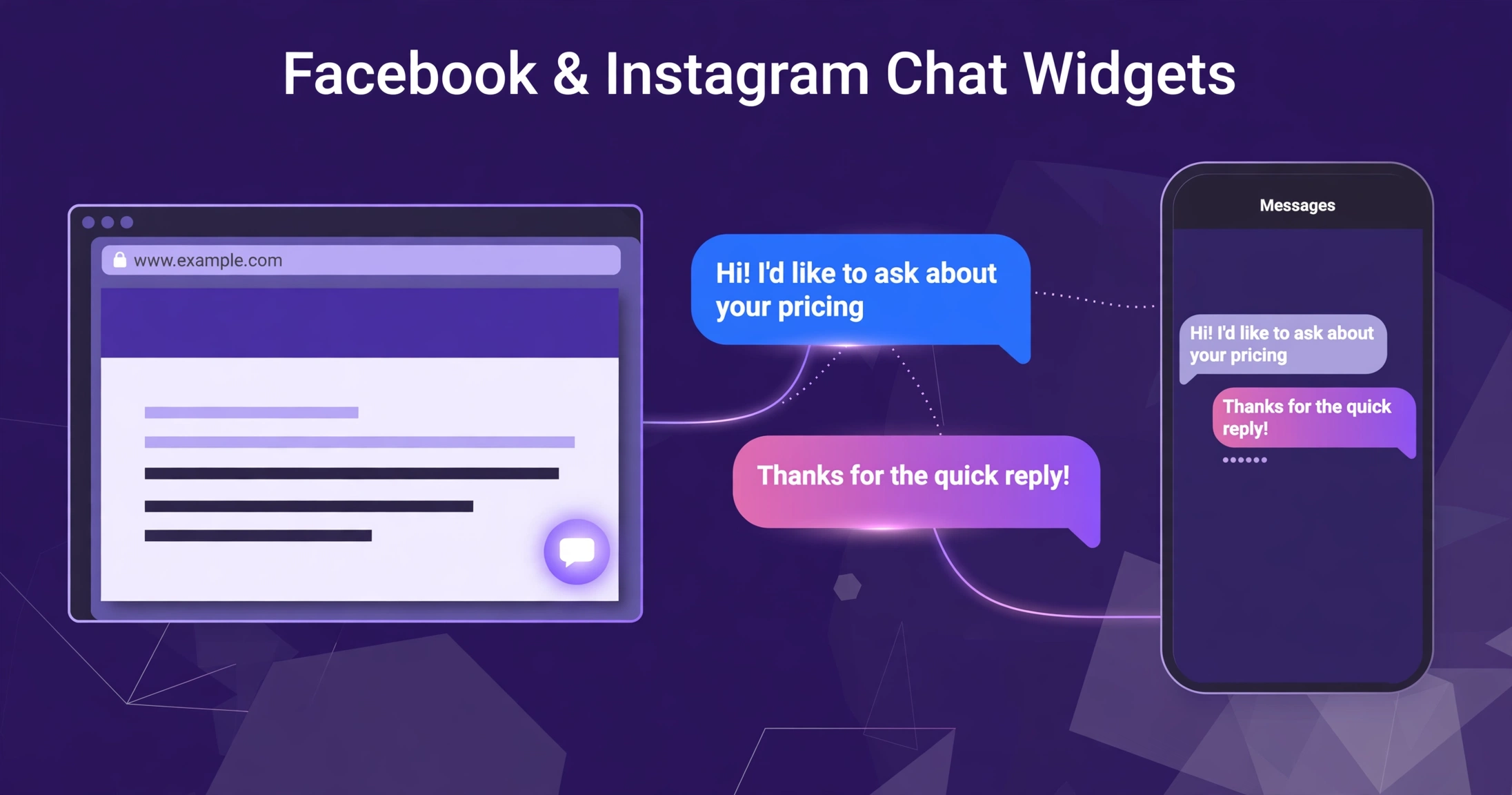
The widget works in three steps: the visitor clicks, Meta opens, the conversation continues where the visitor already is.
When a visitor clicks the chat bubble on your website, HighLevel redirects them to Messenger or Instagram DM, depending on which widget you installed. If the visitor is logged into Facebook or Instagram, the conversation opens straight away. If they are not logged in, the Meta login screen opens first, which is worth knowing before you judge the widget by its click-through rate: a logged-out visitor has one extra step.
After the first message, the thread lives in two places at once. The visitor sees it in their Messenger or Instagram app, where it follows them across devices without losing history. Your team sees it in HighLevel's Conversations inbox, alongside SMS, email, WhatsApp and web chat, threaded against the same contact record. That unified inbox is the practical payoff: the conversation is a Meta DM to the customer and a normal HighLevel conversation to your team, with no second tool to check.
Facebook Chat vs Instagram Chat vs the All-in-One widget: which should you use?
Each widget is tied to a single channel. One widget cannot offer both Facebook and Instagram. If you want visitors to choose between channels in one bubble, use the All-in-One Chat widget, which combines Live Chat, SMS/Email, WhatsApp, Facebook, Instagram and Voice AI in a single interface.
| Widget | What the visitor gets | Best for |
|---|---|---|
| Facebook Chat | Redirect to a Messenger conversation with your Facebook Page | Businesses whose enquiries mostly arrive on Facebook |
| Instagram Chat | Redirect to an Instagram DM with your Instagram Business account | Brands whose audience engages mainly on Instagram |
| All-in-One Chat | One bubble with a choice of Live Chat, SMS/Email, WhatsApp, Facebook, Instagram and Voice AI | Businesses that want visitors to pick their own channel |
Verdict: use a single-channel Facebook or Instagram widget when one Meta channel clearly dominates your enquiries, because it removes a choice and gets the visitor into the conversation faster. Use the All-in-One widget when your audience splits across channels or you also want Live Chat and SMS in the same bubble.
Ready to try GoHighLevel? Start your 14-day free trial here (affiliate link) — the chat widgets are part of the Chat Widget builder, so you can build one as soon as your account is set up.
If the real question is not which widget to pick but who will build, connect and test it properly, that is what we do. CRM Automates is a GoHighLevel certified company trusted by 300+ businesses, with 150+ team members and 24/7 support. Our pay-as-you-go service covers one-off GoHighLevel tasks like widget setup, integrations and workflow builds, with no retainer.
What do you need before you set up a widget?
You need a connected Meta account before HighLevel will let you create either widget. This is the step that catches most people out, because the chat type simply does not appear as a selectable option until the account is connected.
For a Facebook Chat widget, connect a Facebook account to the sub-account and select the Facebook Page the widget should message. For an Instagram Chat widget, connect the Instagram Business account you want DMs to go to. Both connections happen under the sub-account's integration settings, and HighLevel's updated connection modal now lets you connect additional pages or accounts without leaving the widget flow.
You also need the right access inside HighLevel: permission to create and edit chat widgets in the sub-account. And check that messaging access is enabled on the connected accounts, because conversations only appear in the Conversations inbox when the integrations and permissions are connected correctly.
How do you set up a Facebook Chat widget?
Setting up a Facebook Chat widget takes four steps in the builder, and most of the work is choosing the right Page.
- Create a new widget. Go to Sites → Chat Widgets and select the blue New button.
- Select the chat type. In the "Select the type of chat" pop-up, choose Facebook Chat. If a Facebook account is connected but no pages are selected, a page selection modal opens so you can pick the Page the widget will use. If no Facebook account is connected at all, the selector will prompt you to connect one first — open the link, connect the account, then return to the selector.
- Customise the widget. Work through the Style, Chat Window and Messaging tabs: colours, greeting text, launcher icon and placement, so the bubble matches your brand. Under the Chat Window tab you will find the new Facebook Chat Setup accordion, where you select the connected Facebook Page from a dropdown. You can change the linked Page here later, or click Connect a linked Facebook page to add more pages without leaving the builder.
- Save the widget. Nothing goes live until you save, and the install step below is separate — saving alone does not put the widget on your website.
How do you set up an Instagram Chat widget?
The Instagram Chat widget follows the same four steps, with the Instagram account in place of the Facebook Page.
- Create a new widget. Go to Sites → Chat Widgets and select the blue New button.
- Select the chat type. In the "Select the type of chat" pop-up, choose Instagram Chat. If no Instagram account is linked, the selector prompts you to connect one first.
- Customise the widget. The Style and Messaging tabs work exactly as they do for other chat types — the main difference is where the conversation happens, not how the widget looks. Under the Chat Window tab, the Instagram Chat Setup accordion lets you choose from your connected Instagram accounts, or click Connect a linked Instagram account to open the connection modal and add more.
- Save the widget. Then install it using the steps in the next section.
One practical note: the widget connects to an Instagram Business account, not a personal profile. If your Instagram is still a personal account, switch it to a business account and connect it before you build the widget, or the Instagram Chat type will not be available.
How do you install the widget on your website or funnel?
Installing the widget is a separate step from building it, and the method depends on where your website lives.
- Third-party website: click Get Code in the widget, copy the embed snippet, and paste it on your website where you want the widget to appear.
- WordPress site: click Get it for Wordpress instead of copying the raw snippet, and follow the WordPress install flow.
- HighLevel funnel or website: install the widget directly inside the HighLevel Funnel and Website builders, with no embed code needed.
Test the install from a real visitor's point of view: open the page in a private browser window while logged into Facebook or Instagram, click the bubble, and confirm it opens the right Messenger conversation or Instagram DM thread. Test it logged out too, so you know what a logged-out visitor sees — the Meta login screen, not an error.
Can you automate replies from Facebook and Instagram chats?
Yes. Incoming messages from both widgets can run HighLevel automations, so the widget is a starting point for a workflow, not just a redirect.
Use the Facebook Message or Instagram Message workflow triggers to tag the contact, assign the conversation to a team member, send an instant acknowledgement, or route the chat based on what the visitor asks. That matters because speed is where most businesses lose the lead: research by InsideSales found leads contacted within five minutes are 21 times more likely to qualify than leads contacted after thirty minutes, yet only 7% of companies respond that fast, and 2026 data from Blazeo found 81.2% of leads are lost when follow-up takes more than an hour. A workflow that replies in seconds covers the gap while your team gets to the conversation.
HighLevel's Conversation AI can also reply on Facebook Messenger and Instagram DM, so an AI agent can qualify the visitor before a human takes over. If you want that layer, read our guide to AI agents that qualify leads — it explains how Conversation AI differs from a basic chatbot and what it can and cannot do.
Keep the automation honest: a workflow can acknowledge, tag and route instantly, but it cannot replace a human answer to a real buying question. Set the auto-reply to say when a person will respond, and make sure someone actually does.
Five setup mistakes that stop the widget working
Most Facebook and Instagram widget problems come from setup, not from the widget itself. Check these first.
- No account connected. If Facebook Chat or Instagram Chat cannot be selected, no corresponding account is connected to the sub-account. Connect the account under integrations first, then return to the widget builder.
- Wrong Page or account selected. The widget messages exactly the Page or Instagram account chosen in the Chat Window tab. If replies land in the wrong inbox, check the Facebook Chat Setup or Instagram Chat Setup accordion before rebuilding anything.
- Conversations missing from HighLevel. If visitors message you on Messenger or Instagram but nothing appears in Conversations, the integrations or messaging permissions are not connected correctly. Re-check the connection and its permissions.
- Testing while logged out. A logged-out visitor sees the Meta login screen before the conversation opens. That is expected behaviour, not a broken widget — but it is a reason to keep the rest of your site easy to contact for visitors who do not want to log in.
- Expecting two channels from one widget. Each widget is tied to a single channel. If you need Facebook and Instagram in one bubble, build an All-in-One Chat widget instead, and remember its Facebook and Instagram options only appear when those accounts are connected.
If a widget still misbehaves after these checks, look at your workflows that break at scale — a trigger or filter further down the chain is often the real culprit.
When should you use a single-channel widget instead of All-in-One?
Choose a single-channel widget when one Meta channel is clearly where your customers already talk to you. A home services company whose Facebook Page gets ten messages a day and whose Instagram is quiet should put a Facebook Chat widget on its site and stop there. A coach or creator whose audience lives in Instagram DMs should do the same with Instagram Chat. One button, one destination, no decision for the visitor.
Choose the All-in-One widget when your audience genuinely splits — some on Messenger, some on Instagram, some who would rather text or live chat — or when you want Voice AI in the same bubble. The trade-off is a small extra step for the visitor, who picks a channel before the conversation starts.
For agencies, the single-channel widgets are also a cleaner client offer: one widget per client Page, no shared bubble, and the client's own Facebook Page or Instagram account is the destination. If you run Meta ads to the same audience, the same connection powers Smart Lists as Meta Custom Audiences, so the widget and the ads work off the same connected accounts.
The bottom line
HighLevel's Facebook and Instagram chat widgets do one simple thing well: they meet website visitors on the messaging app they already use, instead of asking them to start a new conversation in a chat window they will abandon. Setup takes minutes once the Facebook Page or Instagram Business account is connected, the conversation lands in HighLevel's Conversations inbox, and workflow triggers can tag, assign and reply before your team even opens the thread.
If you are not on GoHighLevel yet, start your 14-day free trial here (affiliate link) and build your first widget in Sites → Chat Widgets.
If you are already on GoHighLevel and want the widgets, the connections, the workflows and the follow-up built properly, book a call or start with a one-off task on our pay-as-you-go service. CRM Automates is a GoHighLevel certified company trusted by 300+ businesses, with 150+ team members and 24/7 support — and if you want a full team running your CRM, marketing and follow-up, see our marketing team at $1,250/mo.
Frequently asked questions
Can I enable both Facebook and Instagram in one widget?
No. Each widget is tied to a single channel, so one widget cannot offer both Facebook and Instagram. If you want visitors to choose between channels in one bubble, use the All-in-One Chat widget, which combines Live Chat, SMS/Email, WhatsApp, Facebook, Instagram and Voice AI in a single interface.
Will conversations from the widget show up inside HighLevel?
Yes, provided your Facebook or Instagram integrations and messaging permissions are correctly connected and messaging access is enabled. When they are, Messenger and Instagram DM threads appear in HighLevel's Conversations inbox alongside SMS, email, WhatsApp and web chat, threaded against the same contact record.
Can I run automations on incoming Facebook and Instagram messages?
Yes. Use the Facebook Message or Instagram Message workflow triggers to tag, assign or route the chat, send an instant acknowledgement, or start a follow-up sequence. HighLevel's Conversation AI can also reply on Facebook Messenger and Instagram DM, so an AI agent can qualify the visitor before a human takes over.
Does the visitor have to be logged in to Facebook or Instagram?
Yes. If the visitor is not logged in, the Meta login screen opens first. That is expected behaviour, not a fault in the widget. Keep another contact option on your site, such as a form or phone number, for visitors who do not want to log in.
Do the Facebook and Instagram chat widgets cost extra?
HighLevel's own documentation lists no separate add-on or additional fee for these widget types — they are built into the Chat Widget builder. If you are unsure what your plan includes, check your plan's feature list in HighLevel before you build, rather than assuming.
What is the difference between the Facebook Chat widget and the All-in-One widget?
The Facebook Chat widget does one thing: it redirects visitors to a Messenger conversation with your connected Facebook Page. The All-in-One widget puts several channels — Live Chat, SMS/Email, WhatsApp, Facebook, Instagram and Voice AI — into a single bubble and lets the visitor choose. Use the single-channel widget when one channel dominates; use All-in-One when your audience splits across channels.