HighLevel AI Studio Model Picker: Choose Claude, GPT or Gemini for Every Build
HighLevel's AI Studio now lets you choose which AI model builds each message: Claude Opus 5.5, Claude Sonnet 5.5, GPT-5.6 Sol, GPT-5.6 Terra, Gemini 4 Carbon or Gemini 4 Hydrogen, or leave it on Auto. Released 23 November 2026, the picker is in beta for Founder Plan agencies and AI Employee sub-accounts, and billing follows the model that ran it.
Until now, that choice did not exist. Every message in AI Studio ran on the same models, whether you were asking for a full multi-page build or a one-line copy tweak. You could not bring a more capable model to a hard build, or a faster and cheaper one to a quick edit, and you could not even see which model did the work. The model picker fixes all three gaps in one small chip under the chat box.
What is HighLevel AI Studio?
HighLevel AI Studio is HighLevel's AI-powered website and web app builder. You describe the site or app you want in plain language, and the AI Studio agent builds it, with a live preview you can refine conversationally and publish without leaving the chat. It sits inside your sub-account alongside the CRM, funnels and workflows, so what you build connects to your contacts, calendars and payments instead of living in a separate tool.
AI Studio has been moving fast. In the last six weeks alone, HighLevel has added website building from Ask AI, file references and integration skills in the chat composer, a one-click connection from AI Studio sites to Conversation AI agents, and now the model picker. This article covers the model picker in full, and the later sections explain the other recent additions so you can see how they fit together.
What is the AI Studio model picker?
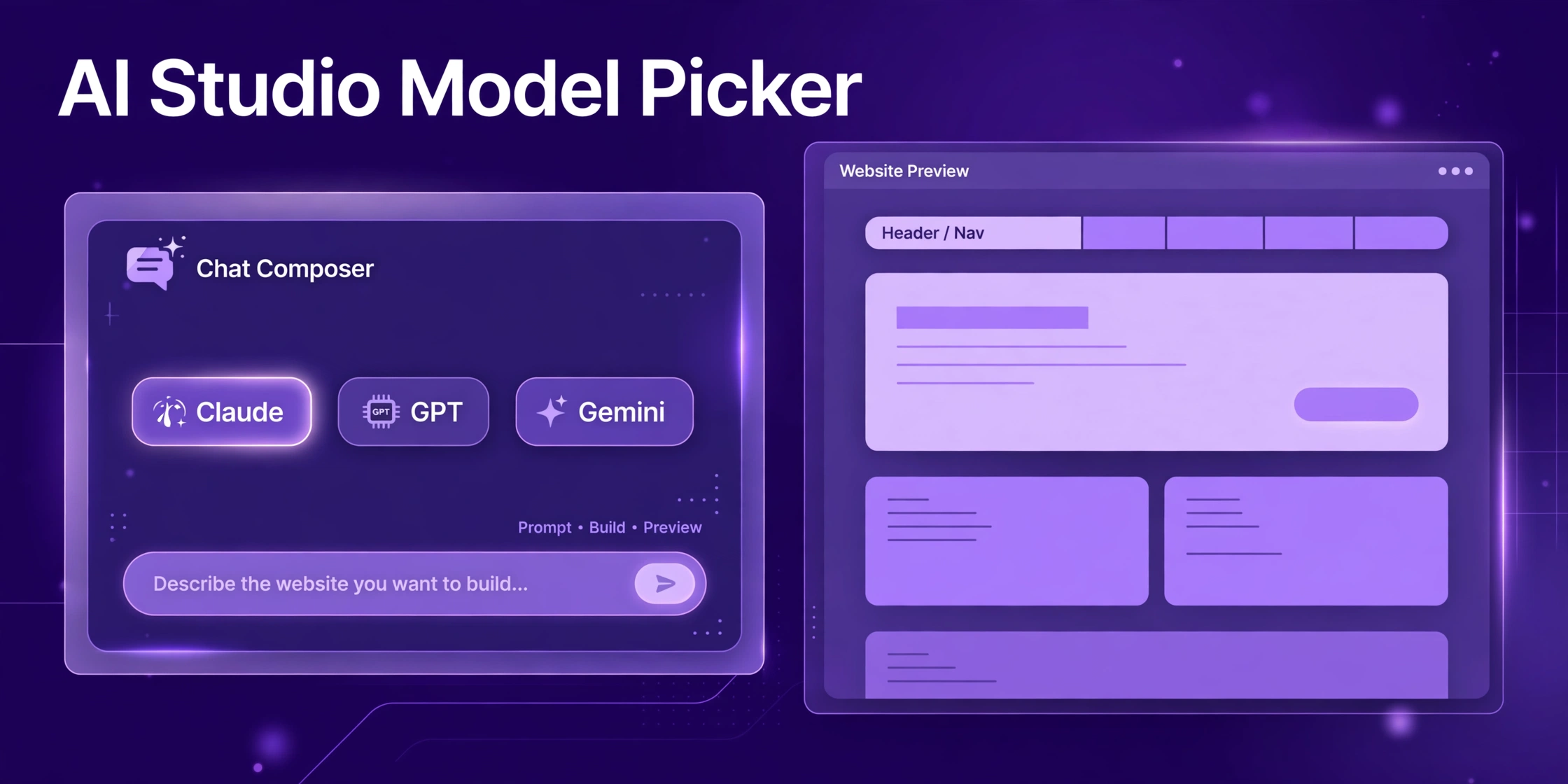
The AI Studio model picker is the setting that lets you choose which AI model builds each message you send in AI Studio. It appears as a new "Auto · Beta" chip under the chat box, on the AI Studio dashboard and in the builder. Click it and a menu opens with the available models, grouped by provider: Claude, GPT and Gemini.
Auto stays the default. If you never touch the picker, nothing changes: Auto picks the right model for each message, exactly as AI Studio behaved before. The picker is there for the moments when you have a preference, and it stays out of the way the rest of the time.
Three details make it practical rather than cosmetic. First, your pick is remembered per project, so you set it once and it holds until you change it, and a new project starts on the last pick you made from the dashboard. Second, every finished turn is labelled with the model that ran it, for example "· Claude Opus 5.5", so you can see what built what. Third, the picker locks while a turn or build is running and unlocks when it finishes, so you cannot accidentally switch models mid-build.
Which models can you choose in AI Studio?
Six models are available at launch, two from each of the three providers, plus Auto. HighLevel says each model carries a one-line note in the picker explaining what it is best at, and that new models can be added, or hidden, without an app update, so this list will grow during the beta.
| Provider | Model | Position in the picker |
|---|---|---|
| Claude (Anthropic) | Claude Opus 5.5 | The premium option; HighLevel names it as the example of a model that costs more per message |
| Claude (Anthropic) | Claude Sonnet 5.5 | The second Claude option |
| GPT (OpenAI) | GPT-5.6 Sol | The first GPT option |
| GPT (OpenAI) | GPT-5.6 Terra | The second GPT option |
| Gemini (Google) | Gemini 4 Carbon | The first Gemini option |
| Gemini (Google) | Gemini 4 Hydrogen | The second Gemini option |
| Any | Auto (default) | AI Studio picks the right model for each message |
Source: HighLevel official changelog, 23 November 2026, https://highlevel.canny.io/changelog?labels=ai-studio.
A word of caution before you compare the models: HighLevel has not published benchmark scores, context limits or per-message prices for these six models. Do not trust any third-party article that quotes exact AI Studio model prices or performance figures, because those numbers are not public. What HighLevel has said is that the most capable models suit complex builds, faster and cheaper ones suit quick edits, and premium models such as Claude Opus 5.5 cost more per message than faster ones. That is the honest basis for choosing, and the rest of this guide works from it.
How do you choose a model in AI Studio?
Choosing a model takes three steps, straight from HighLevel's own instructions.
- Open AI Studio. Go to your sub-account, then AI Studio, and open a project or start from the dashboard.
- Click the chip. Click the "Auto · Beta" chip under the chat box and choose a model from the menu.
- Send a message. It builds on the model you chose, and the finished turn shows that model's name.
Your pick stays until you change it, and it is remembered per project, so switching between projects does not reset your preference. One useful detail: if AI Studio asks you a question mid-build, for example about a colour palette or which calendar to connect, your answer continues on the model the turn was already using. You do not need to re-pick after every question.
Which model should you pick for each job?
The right model depends on the job, not on the brand. HighLevel's own framing is the safest guide: the most capable models for complex builds, faster and cheaper ones for quick edits, and Auto when you would rather not decide.
- A full multi-page build from scratch. Use the most capable model available, the premium option in the picker. A first build sets the structure, the design system and the content for every page that follows, so this is where model quality matters most. A weaker model here costs you more in fixes than the premium model costs in usage.
- A complex feature or integration. Use the most capable model again. Adding a payment flow, a booking calendar or a database connection is the kind of work where a stronger model earns its keep, and it is exactly the case HighLevel describes when it says users had no way to "bring a more capable model to a hard build".
- A one-line copy tweak or a small layout change. Use a faster model, or leave it on Auto. A quick edit does not need the most capable model in the list, and this is where the cheaper options save you money.
- A routine edit you would have made anyway. Leave it on Auto. Auto is the default for a reason: it picks the right model for each message, and most day-to-day edits do not need your input on model choice.
- When you are learning AI Studio. Leave it on Auto. Learn the builder first, then start experimenting with models once you can tell a good build from a weak one.
If you are not sure which model is the premium one in your picker, look for the model HighLevel flags in the menu, and check the label on your finished turns. The label tells you what actually ran, so after a few builds you will know which model produced the results you liked.
Verdict: start on Auto, switch to the premium model for big builds, and drop to a faster model for small edits. That is the whole strategy, and it costs you nothing to try.
Ready to try it? Start your 14-day free trial here (affiliate link) and open AI Studio to see whether the model picker is live on your plan.
How does model choice affect your AI usage bill?
Model choice affects your bill directly. HighLevel states that usage is billed at the cost of the model that ran it, so premium models like Claude Opus 5.5 cost more per message than faster ones. Builds and edits use your account's AI usage, and the model you pick decides how much of it each message consumes.
Two warnings matter here. First, HighLevel says models and pricing may change during the beta, so do not build a client quote on today's model costs. Second, no per-message prices are published for these six models, so if anyone quotes you an exact AI Studio model price, treat it as unverified. What you can do is watch the model label on your finished turns and compare the usage on builds where you picked a premium model against builds where you left it on Auto. That comparison is the only reliable price signal you have until HighLevel publishes figures.
The practical rule is simple: spend the premium model on work that is expensive to redo, and save the cheaper models, or Auto, for work that is cheap to fix. A multi-page build that comes back wrong costs you a second build. A headline tweak that comes back wrong costs you one more message.
Who can use the AI Studio model picker?
The model picker is in beta, and access is limited. It is available to agencies on the Founder Plan and to sub-accounts on the AI Employee plan. Other accounts keep running on Auto and do not see the picker at all.
That access rule has a real cost implication. The Founder Plan is HighLevel's $497 a month agency plan, and the AI Employee plan is priced per sub-account, with Growth at $50 a month and Unlimited at $97 a month, according to our verified guides. If you are on a lower plan and want the picker, the upgrade decision is about more than the picker itself: the Founder Plan also unlocks Meeting Rooms and other Founder-only features, while the AI Employee plan covers Conversation AI, Voice AI and Content AI usage across your sub-account.
If you do not have access yet, you lose nothing. Auto is the same behaviour AI Studio had before the picker existed, and every build you make on Auto still works. The picker is a control upgrade, not a capability you are missing.
What else is new in AI Studio?
The model picker is the fourth AI Studio release in six weeks. The other three are worth knowing, because they change how you build, not just which model builds.
Build a website or app from Ask AI (19 November 2026)
You can now build a website or app just by describing it in Ask AI. The AI Studio agent takes your request, builds the project, and lets you preview it, refine it in plain language and publish it live, all without leaving the chat. You can attach a brief as a PDF or images such as a logo, and the agent uses them in the build. When it needs a decision, such as a colour palette, fonts, layout or which calendar to use, it asks right in the chat with clickable options. A step-by-step checklist shows what the agent is working on, and you can click Stop anytime to cancel a running build. Publishing from Ask AI uses the default domain; to use a custom domain, connect it in the AI Studio editor. Builds usually take a few minutes, and changes made after publishing are not live until you publish again. One caution from HighLevel: the agent may fill gaps with sample text, reviews or contact details, so swap in your real details before going live.
File references and integration skills in the composer (13 November 2026)
The chat composer is now richer. Type @ in Code view to point the AI at a specific file, optionally down to a line or range, and it appears as a pill in the composer and in sent messages. Type / in the Builder to pick a built-in skill: Database Optimization, Form Tracking, Calendar Integration, Payment Integration or Chat Widget. You can use one skill per message, and integration skills ask you to choose the integration before they run. Responses also stream more smoothly. Note that @ file references work in Code view only, and / skills work in Builder only, and a file reference tells the AI which file you mean rather than pinning the file's contents into context.
Connect a Conversation AI agent to your site's live chat widget (6 November 2026)
You can now connect a Conversation AI agent to your site's live chat widget right from AI Studio. Open your site, click More, go to Chat Widgets, then the AI agent section, pick an agent from the dropdown, check its tag conditions and save. The agent starts replying to visitors on that live chat widget, and you can see who is answering and under which tag conditions, or edit or remove the connection from the same place. This works with live chat widgets only, and one agent can be connected from AI Studio; more agents can be connected from Conversation AI. For the full picture on Conversation AI, see our guide to AI agents replacing chatbots in lead qualification.
Flexible AI Studio checkouts (15 October 2026)
AI Studio checkouts now let you choose exactly which fields buyers fill in, capture leads before they pay with a two-step checkout, and show a full order summary once payment goes through. Name and email are always required; you can show, hide or require the phone number and each billing address field. In a two-step checkout, step one saves the buyer as a CRM contact, so people who do not complete payment are still leads you can follow up with, and step two collects the payment.
Should you switch models or stick with Auto?
For most users, Auto is the right answer most of the time. It existed before the picker, it is still the default, and HighLevel built it to pick the right model for each message. The picker earns its place in three situations: a big build where quality matters more than cost, a quick edit where cost matters more than quality, and a project where you have learned from the model labels which model gives you the results you like.
The mistake to avoid is treating the picker as a setting to optimise once and forget. Your pick is remembered per project, which is convenient, but it also means a premium model chosen for a big build stays selected for the small edits that follow, and a fast model chosen for a quick fix stays selected for the next big build. Check the chip before you send a message that matters, and check the label on the finished turn. Those two habits cost nothing and keep the picker working for you instead of against you.
The bottom line
The AI Studio model picker is a small change with a clear purpose: the right model for each job, with Auto still doing the deciding when you do not want to. Six models from Claude, GPT and Gemini are available at launch, the pick is remembered per project, every turn is labelled with the model that ran it, and billing follows the model you chose. It is in beta for Founder Plan agencies and AI Employee sub-accounts, and everyone else keeps running on Auto, which is no loss at all.
Try GoHighLevel free for 14 days (affiliate link) and open AI Studio in a sub-account to see whether the model picker is live for you. If it is, start a build on Auto, then try the premium model on your next big build and compare the two. The labels on your finished turns will tell you more than any review can.
If the real question is not which model to pick but who will build and run the sites, funnels and follow-up inside your GoHighLevel account, that is what we do. CRM Automates is a GoHighLevel certified company, trusted by 300+ businesses, with 150+ team members and 24/7 live expert support. Our pay-as-you-go GoHighLevel services cover one-off builds, automations and integrations from $80 per 4-hour block, with no retainer, and you can book a free call to talk through what you need.
Frequently asked questions
What is the HighLevel AI Studio model picker?
The AI Studio model picker is the setting in HighLevel AI Studio that lets you choose which AI model builds each message: Claude Opus 5.5, Claude Sonnet 5.5, GPT-5.6 Sol, GPT-5.6 Terra, Gemini 4 Carbon or Gemini 4 Hydrogen, or Auto. It appears as an "Auto · Beta" chip under the chat box, and it was released on 23 November 2026.
Which AI models are available in HighLevel AI Studio?
Six models are available at launch: Claude Opus 5.5 and Claude Sonnet 5.5 from Anthropic, GPT-5.6 Sol and GPT-5.6 Terra from OpenAI, and Gemini 4 Carbon and Gemini 4 Hydrogen from Google. Auto is also available and stays the default. HighLevel says new models can be added or hidden without an app update.
Who can use the AI Studio model picker?
The picker is in beta for agencies on the Founder Plan and sub-accounts on the AI Employee plan. Other accounts keep running on Auto and do not see the picker. The Founder Plan is HighLevel's $497 a month agency plan, and the AI Employee plan is priced per sub-account.
Does choosing a model in AI Studio cost more?
Yes, it can. Usage is billed at the cost of the model that ran each message, so premium models like Claude Opus 5.5 cost more per message than faster ones. HighLevel has not published per-message prices for the six models, and says models and pricing may change during the beta.
What is the difference between Auto and picking a model in AI Studio?
Auto lets AI Studio choose the right model for each message, and it is the default. Picking a model yourself gives you control: use the most capable model for complex builds and a faster, cheaper model for quick edits. Your pick is remembered per project, and every finished turn is labelled with the model that ran it.
Can I build a website in HighLevel AI Studio without the model picker?
Yes. The picker only controls which model builds each message. You can build a website or app by describing it in Ask AI or in the AI Studio builder, with or without the picker, and Auto handles model selection for accounts that do not have beta access.